Blog
Microsoft Copilot Returns as a Sidebar in Windows 11

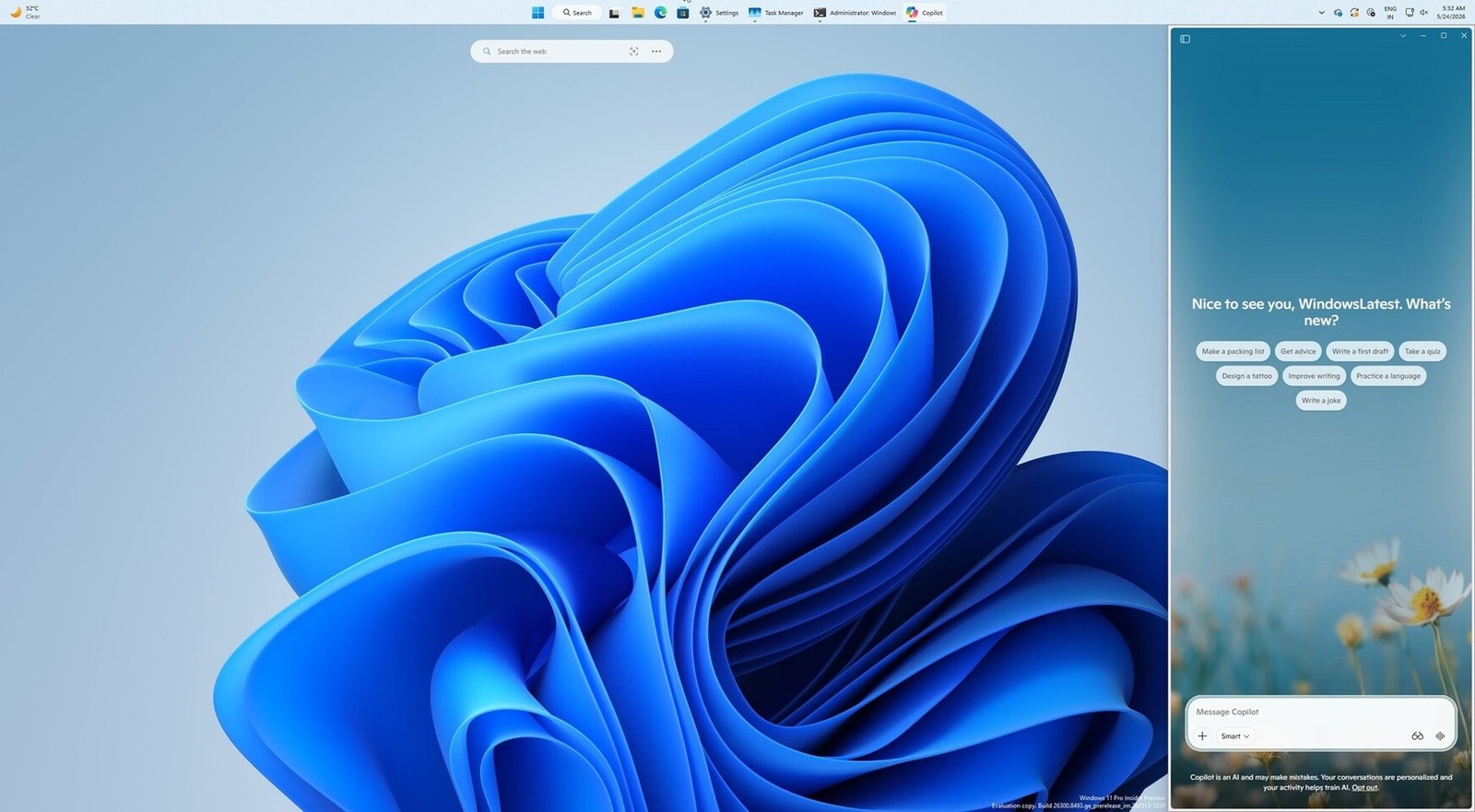
For those who remember, when Copilot launched in 2024, its original design was as a sidebar application, which was later changed to a standalone desktop design. After several iterations, we are now back to the original design, which is more integrated with desktop context menus, applications, icons, and other UI elements in Windows 11. The new design can be seen below, courtesy of Windows Latest.
Fortunately, Microsoft now also offers two distinct ways to remove the Copilot application. One method involves a registry edit, while the other is a group policy setting, which will help system administrators remove Copilot from all enterprise systems.
The first method is a Windows Registry edit. This involves opening the Registry Editor, navigating to “HKEY_CURRENT_USERSoftwarePoliciesMicrosoftWindows,” right-clicking on the Windows key, selecting New > Key, and naming the new key “WindowsAI.” Next, users should go to the “HKEY_CURRENT_USERSoftwarePoliciesMicrosoftWindowsWindowsAI” path, right-click on the right side, select New > DWORD (32-bit), name it “RemoveMicrosoftCopilotApp,” then double-click the new entry and set the value to one (1). This should instruct Windows to remove the Copilot AI app and its elements, which should be visible after a restart.
The second method is through a group policy setting. Users can navigate to User Configuration > Administrative Templates > Windows Components > Windows AI and remove the Microsoft Copilot App. This only works if users did not install the application themselves.