Blog
The Beauty Of Divi 5’s Gradient Variables

Good design tools do more than add new settings. They change how you think about the decisions you make. Gradients are a perfect example. In older workflows, a gradient often lived wherever you built it: one section background, one button, one hero heading, one CTA. If the brand direction changed later, you had to remember where that gradient was used and update each instance by hand.
Gradient Variables in Divi 5 change that. Instead of treating a gradient as a one-off value, you can save it as part of your site’s design system and reuse it wherever gradients are supported. That is where the beauty of the feature becomes clear. A gradient can start as one reusable source, show up across backgrounds, buttons, and text fills, and still remain connected to the same value inside the Variable Manager.
In this post, we’ll look at what Gradient Variables are, how they fit into Divi 5’s design system, how to create them, and how to use them across a site without rebuilding the same visual treatment over and over.
What Are Gradient Variables In Divi 5?
Design Variables are Divi 5’s system for managing reusable values across a website. Instead of setting a color, font, number, image, link, text value, or gradient directly on every element, you define the value once in the Variable Manager and apply it wherever it is needed.
Every element using that variable stays connected to the central value. Edit the variable once, and every connected instance updates. Gradient Variables bring that same logic to gradients.
You create a gradient in the Variable Manager, give it a name, and then use it anywhere a supported gradient field appears. That can include section backgrounds, row backgrounds, module backgrounds, button backgrounds, and text gradient fills.
The important difference is connection. A copied gradient is only a copy. If you paste the same gradient into ten places, you now have ten separate gradients. Change one, and the other nine stay the same.
A Gradient Variable works differently. Each element points back to the same saved gradient. When you edit that variable, every place using it updates from the same source. That makes gradients easier to manage on real websites, especially when the same brand treatment appears in several places.
The Design Chain That Makes Gradient Variables Powerful
Gradient Variables are useful on their own, but they become more powerful when you understand how they connect to the rest of Divi 5’s design system. The chain looks like this:
- Design Variables: Store reusable values, such as colors, fonts, numbers, images, text, links, and gradients.
- Option Group Presets: Save reusable styles for a specific option group, such as Background, Text, Border, Box Shadow, or Spacing.
- Element Presets: Save a complete design for a specific element type.
- Pages And Templates: Use those variables and presets across real layouts.
Option Group Presets are especially important here because they can carry a shared design decision across different elements that use the same option group. For example, a Background Option Group Preset can be applied to a Section, Row, Column, Group, Blurb, Call To Action, or any other element with a compatible Background option group.
Element Presets work differently. They are tied to a specific element type, so a Button Element Preset applies to Button modules, while a Blurb Element Preset applies to Blurb modules. Gradient Variables can sit at the foundation of that system.
You might start with two color variables, such as Brand Primary and Brand Secondary. Then you use those color variables as stops inside a Gradient Variable. Then you apply that Gradient Variable to a Background Option Group Preset. Then that preset gets used across several sections and modules.
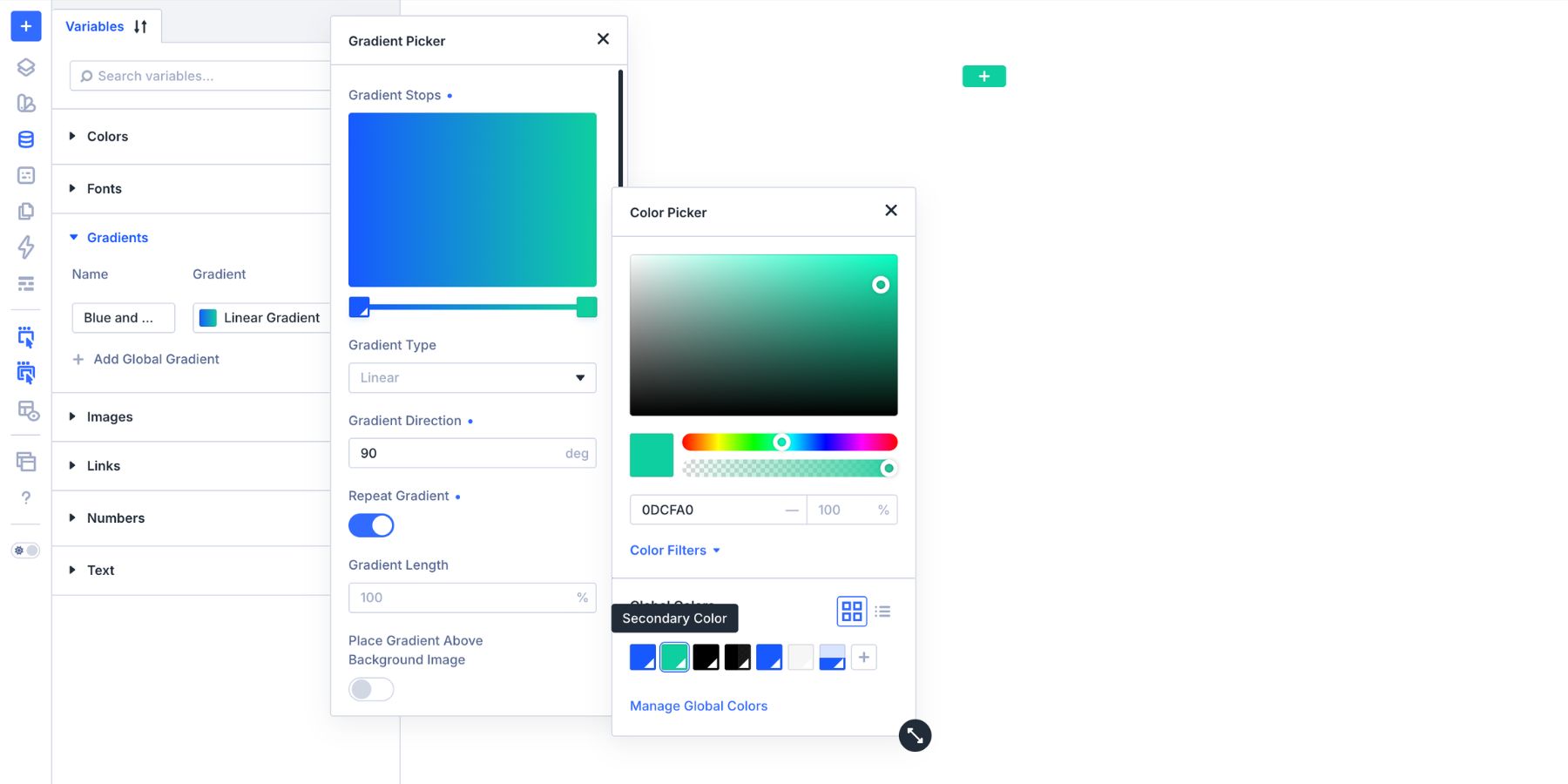
That creates a connected design chain:
- A color variable feeds the gradient.
- The gradient variable feeds the preset.
- The preset applies the style across the site.
- The page inherits the full system without storing everything as one-off values.
The Beauty Of This System
Most design systems do not fall apart because the first choices were bad. They fall apart because those choices were never connected. A color is used in one place. A gradient is recreated somewhere else. A button background is copied manually. A hero section gets a slightly different version of the same treatment. Over time, the site becomes a collection of similar but disconnected decisions.
Divi 5 works better when those decisions are linked. A color variable can feed a gradient variable. That gradient variable can feed a preset. That preset can carry the design across sections, modules, buttons, or headings. Make the decision once, and the chain holds it together.
The same chain also makes change easier. Replace a color variable, and every gradient using that color can update. Edit the Gradient Variable, and every connected background or text fill can update. Adjust the preset, and every element using that preset can follow.
That is the real advantage: consistent by default, flexible when the design needs to change.
How To Create A Gradient Variable
Divi 5 gives you two practical ways to create a Gradient Variable. You can create one directly in the Variable Manager, or you can convert an existing gradient into a variable from the gradient field.
Method 1: Create One In The Variable Manager
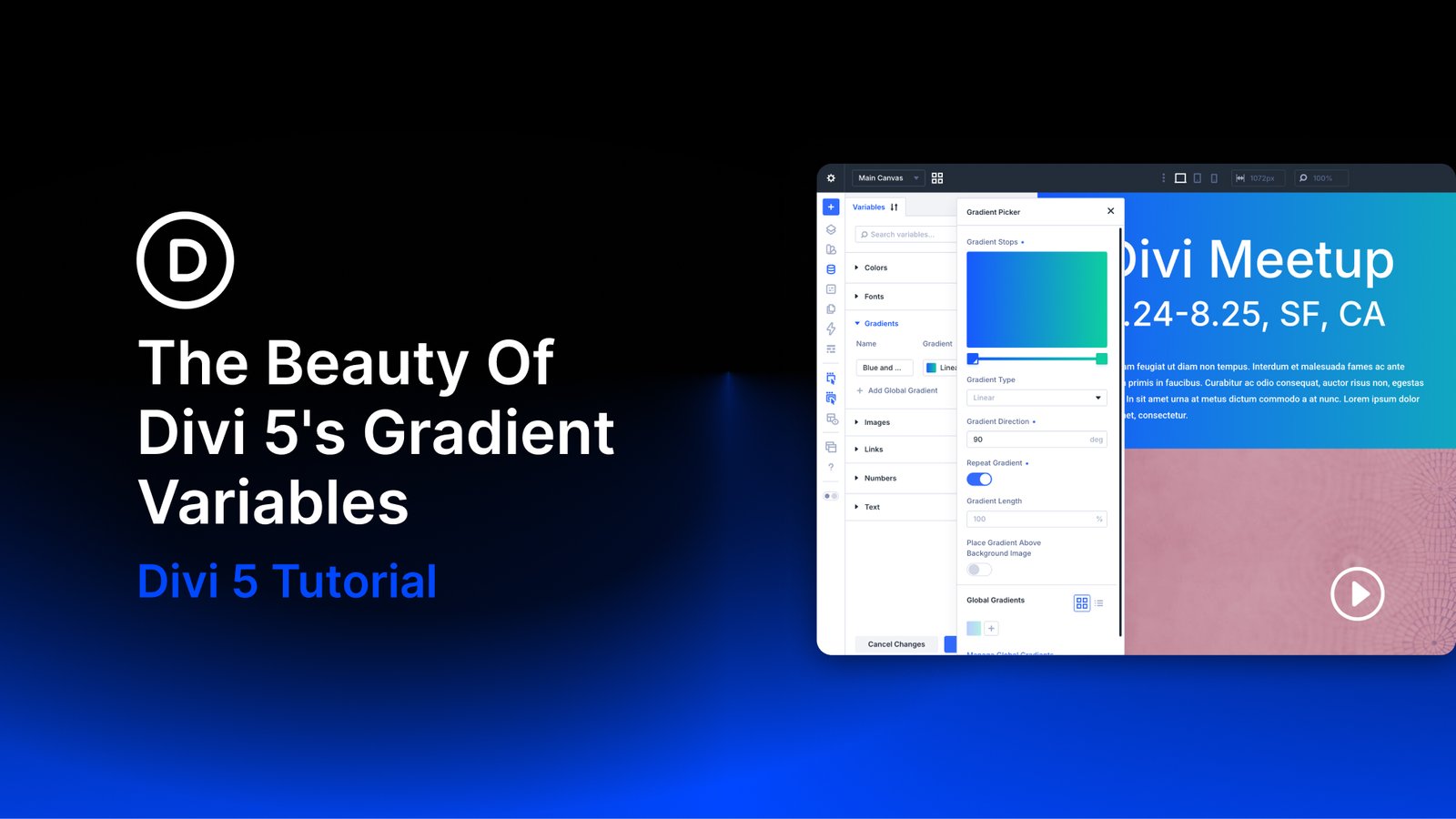
To create a new Gradient Variable from scratch, open the Variable Manager from the left toolbar. Choose the Gradients category, then click Add Global Gradient.
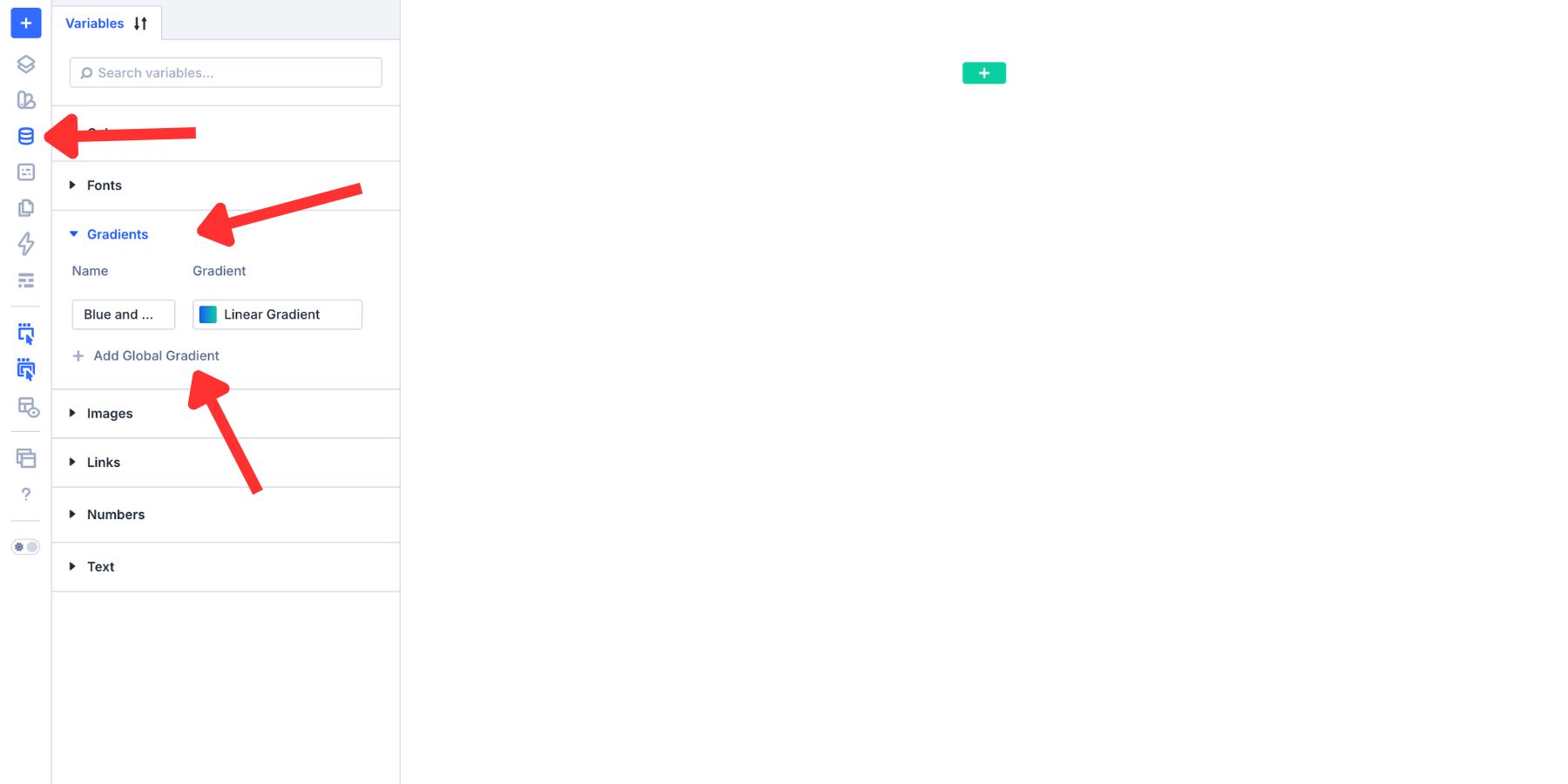
The gradient picker opens. From there, choose the gradient type:
- Linear
- Circular
- Elliptical
- Conical
Add your color stops, choose each stop’s color, and drag the stops along the gradient bar to control where each color appears.
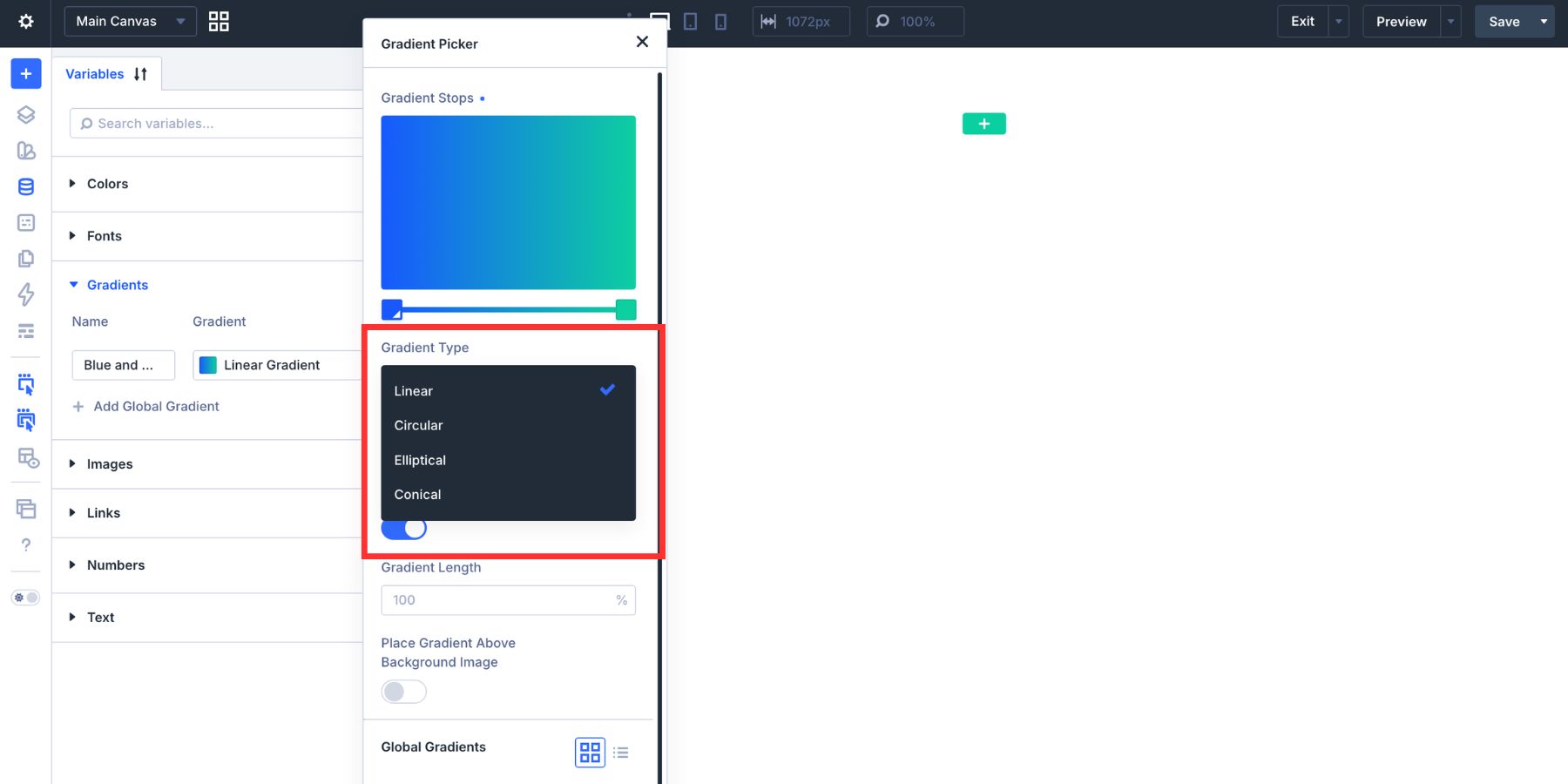
For Linear and Conical gradients, use the angle control to set the direction. For Circular and Elliptical gradients, use the position control to set the origin point, such as center, top left, or bottom right.
Give the variable a clear name before saving it. Use names based on role rather than appearance. For example, Brand Gradient, Hero Glow, Accent Wash, or CTA Gradient will stay useful even if the actual colors change later.
Method 2: Convert An Existing Gradient To A Variable
The second method is useful when you have already built a gradient on an element and decide you want to reuse it. Right-click the gradient field and choose Convert to Variable. Divi turns that local gradient into a saved variable that can be reused elsewhere.
Both methods lead to the same result: a named Gradient Variable that can be selected from supported gradient fields throughout the site.
Where To Use Gradient Variables
Once a Gradient Variable exists, it is ready to use anywhere Divi supports compatible gradient controls. Backgrounds are the most obvious place, but they are not the only one. Gradient Variables can also be used on button backgrounds and inside text fills through Divi 5’s text effects.
Use Gradient Variables As Backgrounds
Backgrounds are the natural starting point for Gradient Variables. Sections, Rows, Columns, Groups, and Modules can use background option groups, which makes them ideal places for reusable gradients.
Open an element’s settings and go to the Background option group. Select the Gradient tab, click the gradient field, and choose your saved Gradient Variable from the picker.
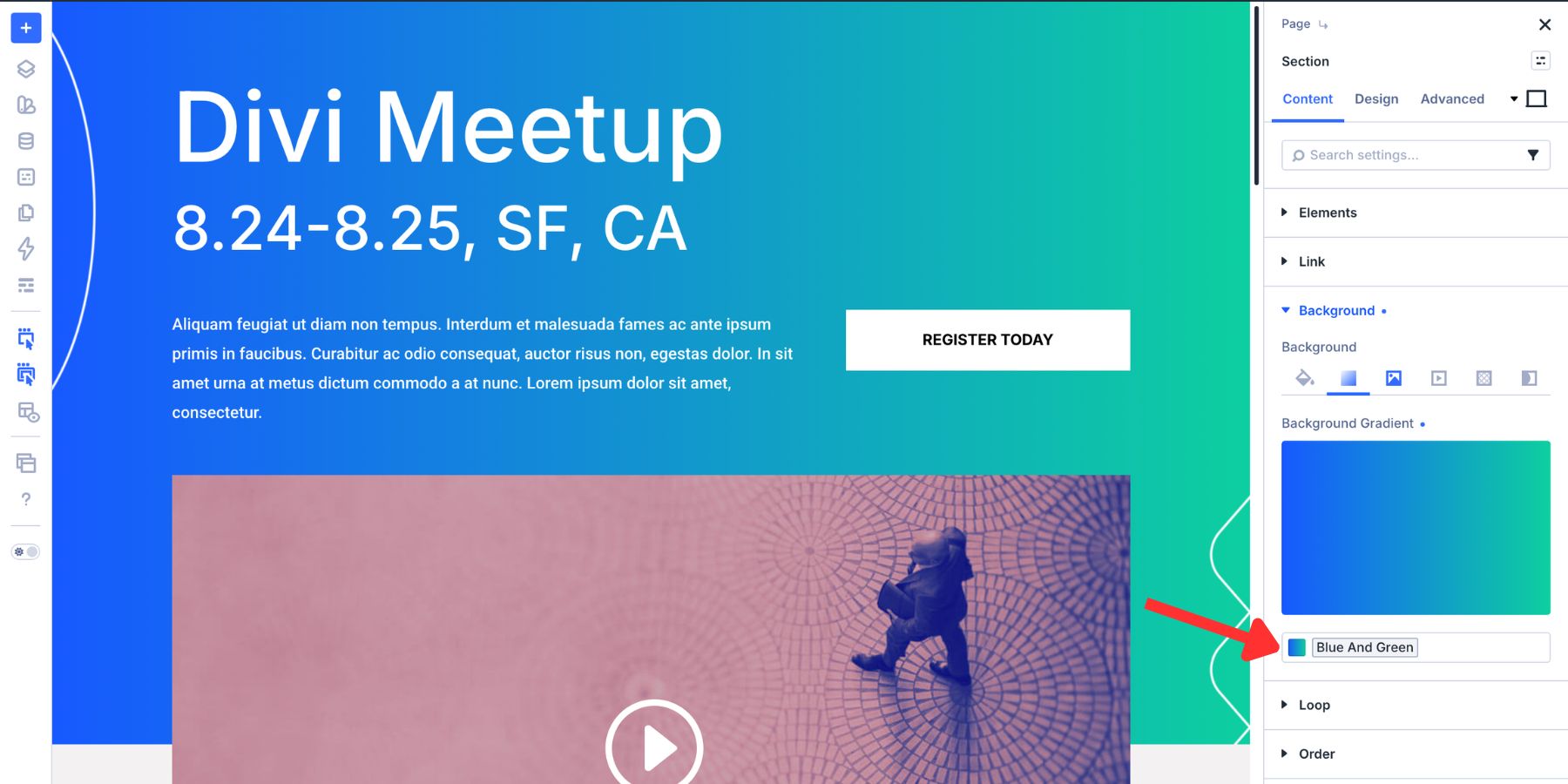
The element now points back to the saved variable instead of storing a separate, disconnected gradient. That means a hero background, feature section, CTA strip, pricing card, and footer treatment can all use the same gradient source. If the gradient changes later, you update it once in the Variable Manager.
Option Group Presets make this even stronger. Create a Background Option Group Preset that uses the Gradient Variable, apply it wherever that treatment belongs, and the preset distributes the gradient across the site. The variable controls the gradient. The preset controls where and how it is used.
Buttons are another strong use case because they often repeat across many pages. Open a Button module, go to the Background option group, select the Gradient tab, and choose a saved Gradient Variable from the gradient picker.
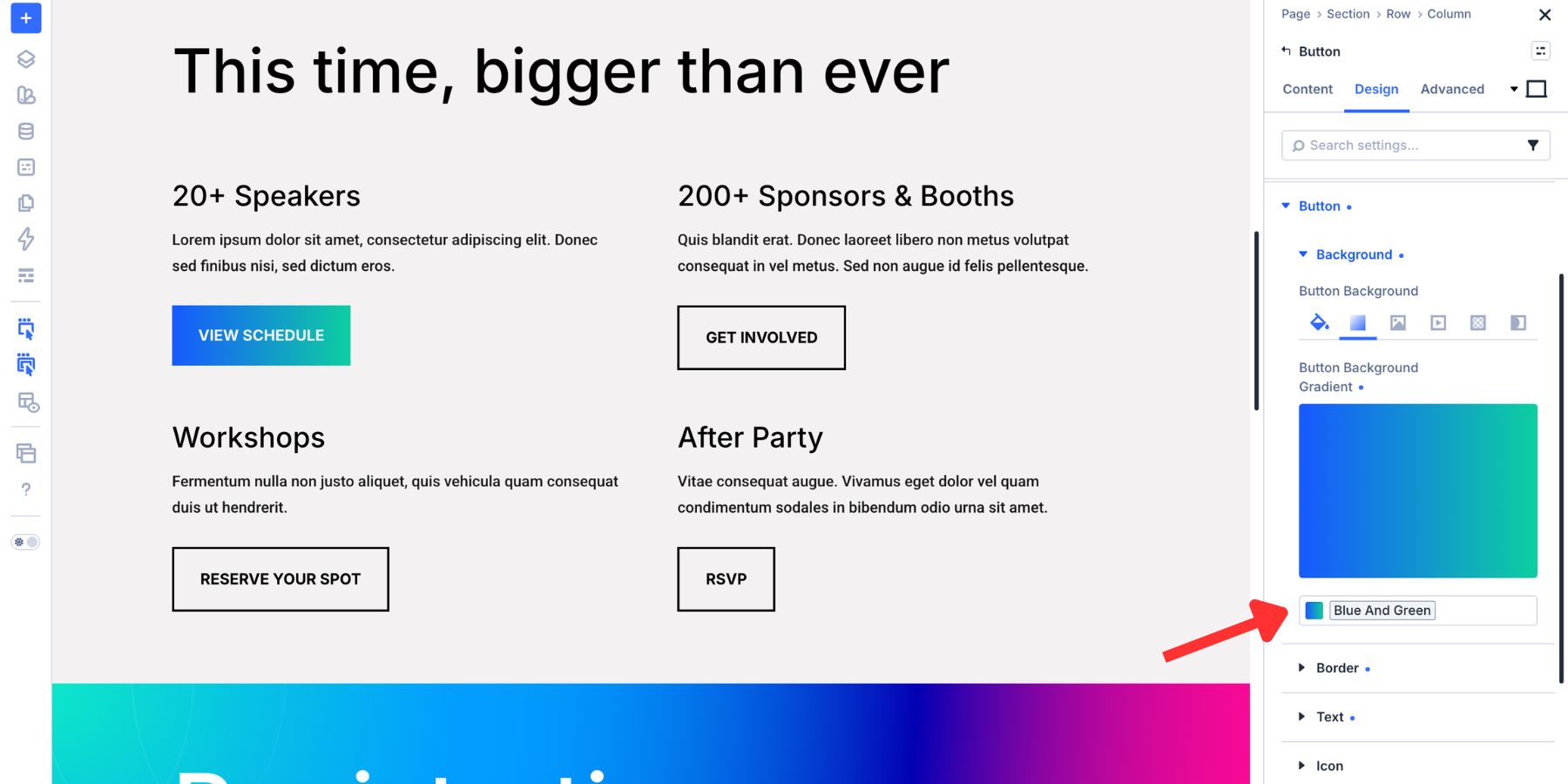
That connects the button background to the variable.
From there, you can decide how reusable the style should be. If this is a Button module style, save it as a Button Element Preset. If you are styling a button option group inside another module, use the relevant option group or nested preset workflow.
The important point is that the gradient should not live as a manual copy on every button. Use the Gradient Variable as the source, then use presets to repeat the design decision. That keeps your hero button, footer CTA, optin button, and inline action buttons visually connected.
Use Gradient Variables Inside Text
Text is where Gradient Variables become more expressive. Divi 5’s text effects let you fill text with a gradient instead of a flat color. This works inside text-based option groups, such as Text, Heading Text, and Title Text, depending on the module.
Inside the text option group, find Fill Type and switch it from None to Gradient. A Gradient Fill control appears below.
Open the gradient field and choose one of your saved Gradient Variables. The text now pulls its fill from the variable instead of a static color or local gradient.
This works best on larger text. A hero heading, editorial title, pricing headline, or campaign wordmark gives the gradient enough room to show. On body text, the color stops compress into smaller letterforms and can become harder to read.
Once the fill is set, you can also add a text stroke.
The fill and stroke are independent. You can use a gradient fill with no stroke, a gradient fill with a subtle stroke, or a transparent fill with only the stroke visible.
Practical Ways To Use Gradient Variables
Gradient Variables are not just about saving time. They help you define repeatable visual roles across a website. Here are a few practical ways to use them.
1. Brand Gradients
Create one main Brand Gradient from your primary and secondary color variables. Use it across hero sections, CTA backgrounds, buttons, and large heading fills. If the brand colors change later, the gradient can follow without rebuilding the whole site.
2. Section Background Systems
Create a small set of reusable background gradients, such as:
- Hero Background
- Soft Section Wash
- Dark CTA Gradient
- Footer Accent
Then use Background Option Group Presets to apply them consistently across similar sections.
3. Campaign Or Seasonal Treatments
A campaign page might need a gradient that appears in the hero, button, feature cards, and text highlights. If that gradient is saved as a variable, you can update the campaign look from one place when the launch changes, the season ends, or the creative direction shifts.
4. Text Fill Systems
Gradient text works best when it is used selectively. Create a Heading Gradient variable for large display text, then reuse it on hero headings, landing page titles, or key marketing messages.
This keeps the effect intentional instead of turning every heading into a different gradient.
Buttons are easy to style slightly differently by accident. Using a Gradient Variable inside button presets keeps repeated actions connected. When the gradient needs to become softer, brighter, darker, or more brand-aligned, you update the source instead of hunting through every CTA.
Tips For Better Gradient Variables
A strong Gradient Variable system is not about creating dozens of gradients. It is about creating the right few. Use these habits to keep the system manageable.
- Name gradients by role. Use names like Brand Gradient, Hero Glow, or CTA Accent instead of color-based names that may become outdated.
- Build gradients from color variables when possible. This keeps your gradient connected to the larger color system.
- Use fewer gradients more consistently. A site with three intentional gradients usually feels stronger than one with fifteen unrelated ones.
- Pair variables with presets. The variable stores the gradient, while the preset helps distribute it across sections, buttons, or text groups.
- Use text gradients selectively. Gradient text is strongest on large headings and short phrases.
- Test contrast. A gradient can look beautiful and still make text hard to read if one stop gets too light or too low contrast.
- Keep local overrides intentional. If one section needs a custom variation, make sure it is truly an exception and not a broken system.
Gradient Variables should simplify your workflow. If the list becomes hard to understand, reduce it to the gradients that have a clear job.
Build A More Connected Gradient System In Divi 5
Gradient Variables in Divi 5 turn gradients from isolated design choices into reusable system values.
Create a gradient once in the Variable Manager, apply it across supported gradient fields, and let every connected instance point back to the same source. Use it for backgrounds, buttons, text fills, and repeated brand treatments. Then pair it with presets so the same decision can move through your site consistently.
That is what makes the feature so useful. It is not only faster on day one. It is more reliable on day thirty, when the gradient needs to change and you do not want to search through every section, button, and heading that used it.
Open the Variable Manager, create your first Gradient Variable, and start building from one connected source.