Blog
5 Free Loop Filter Sidebar Designs For Divi 5

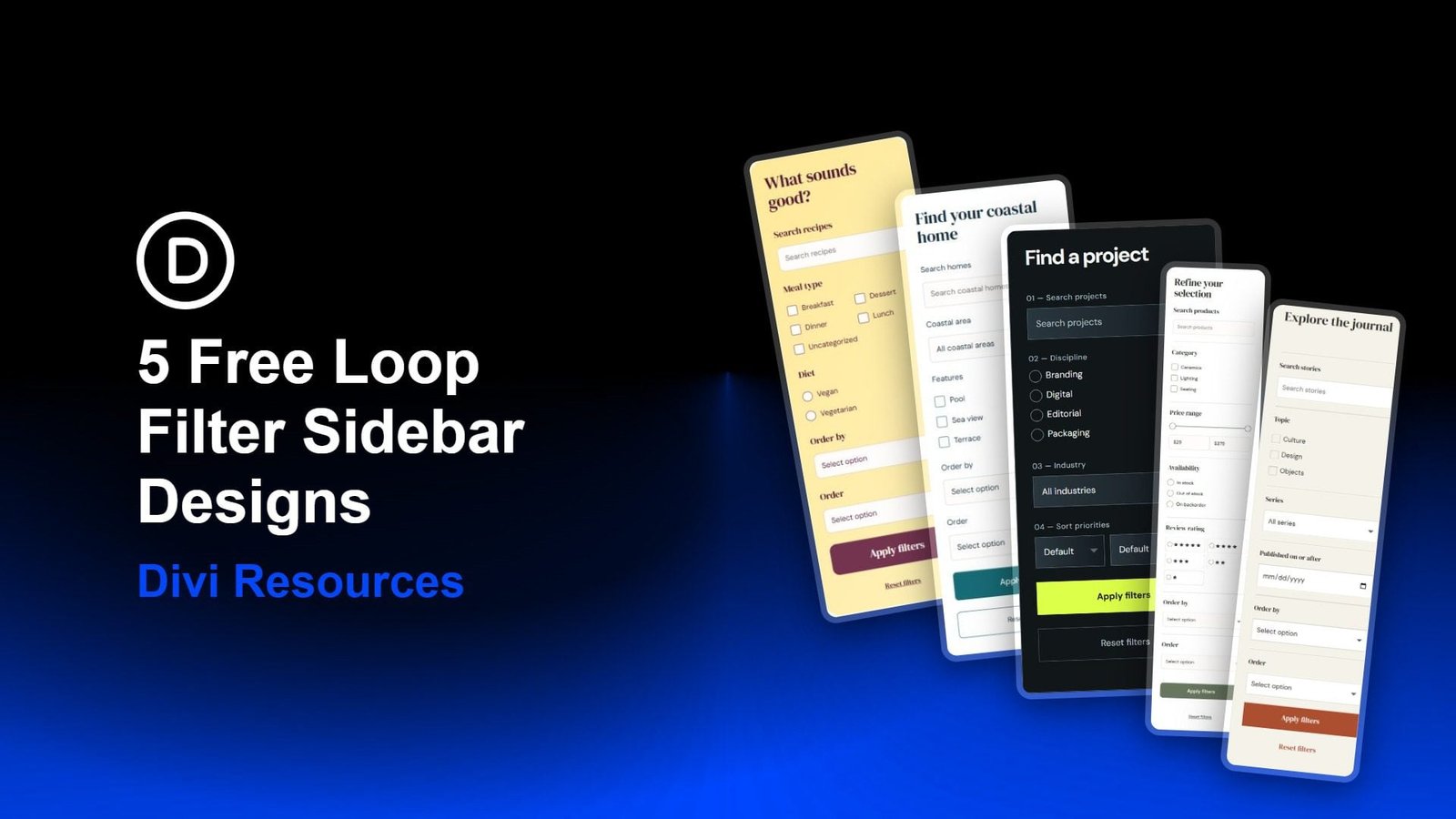
A useful filter sidebar gives visitors clear choices without taking over the page. This free pack includes five styled Post Filter sidebars for Divi 5, each paired with a matching content loop. Import a section and adapt its controls to the way people browse your content.
The designs range from a bright, rounded panel to a dark sticky sidebar and an open form on the right. You will find several ways to style the fields, including compact checkbox groups and gradient backgrounds. Two sidebars use desktop sticky positioning, and each section has its own responsive arrangement.
Each section includes a styled Post Filter sidebar and matching loop styles. Compare the different field treatments and sidebar arrangements below.
The preview images and demo content are not included, but all layout and filter styles are.
Get all five styled sections in one download. Use a complete section as a starting point, or keep its filter styling and connect it to your own loop.
Use an up-to-date Divi 5 installation. Four layouts use standard WordPress Posts or Divi Projects. The Shop layout requires WooCommerce products for its Price Range, Stock Status, and Review Rating controls.
What’s Inside The ZIP?
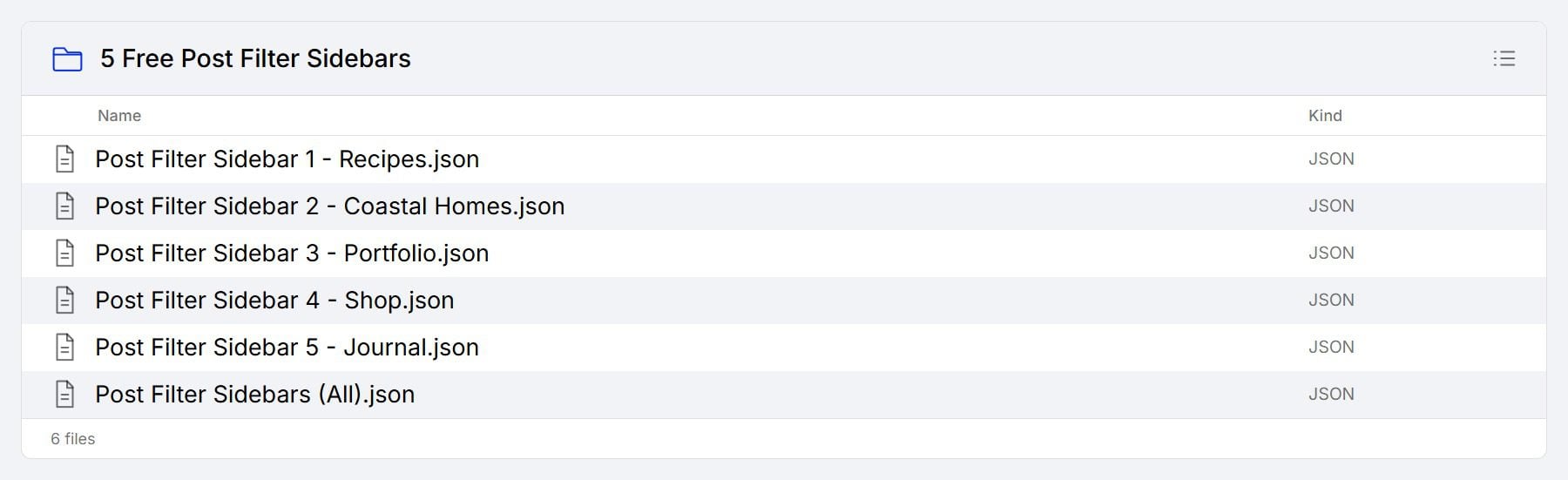
The download contains six JSON files: one for each sidebar design and an All file that imports the complete collection. All five designs are styled and ready to customize. Import the individual file when you need one section, or use the combined export to add all five to your Divi Library.
Import a layout to bring in its structure and styles, then connect the loop and filter fields to your own content.
The Post Filter Module holds the form, while its Post Filter Items provide the individual controls. These five designs give those controls different visual treatments and useful combinations for different content.
A warm yellow panel gives this sidebar a distinct shape against the page. Rounded fields soften the form, while berry-colored checkmarks and radio selections provide a strong contrast against the light background.
The two-column checkbox group keeps short options compact. A filled Apply button anchors the form, with an underlined Reset link underneath. Desktop sticky positioning keeps the panel visible as visitors scroll.
This design uses a white card with restrained corners and lightly outlined fields. Small labels sit close to their controls, creating an orderly form with a consistent vertical rhythm.
Teal gives the primary button and selected checkboxes their accent. The outlined Reset button matches the width of Apply, creating a balanced pair at the bottom. On smaller screens, the controls use a more compact arrangement before the sidebar stacks above the results.
A thin outer border frames this dark sidebar. Numbered labels divide the form into clear stages, and subtle left-to-right gradients add depth inside the search field and dropdowns.
The lime Apply button is the strongest element in the panel. Circular selection controls and the outlined Reset button carry the same fine border treatment through the rest of the form. This sidebar stays sticky on desktop and moves above the loop on smaller screens.
A white panel and muted sage accents give this design a softer appearance. Thin horizontal rules separate the field groups, leaving each set of controls enough space without adding heavy boxes.
The price slider stretches across the panel, while the star-rating choices use a compact grid. These different control shapes add variety within the otherwise quiet form. A full-width sage button and a centered Reset link finish the panel.
This sidebar sits on the right and uses the page background as its outer surface. Serif headings and fine horizontal rules give the form an editorial feel, with a slender vertical divider separating it from the loop.
White rectangular fields stand out against the warm background. The rust-colored Apply button adds the main accent, followed by a simple Reset link. On phones, the sidebar moves above the content so the form uses the available width.
Unzip the layout download to find the five section files and the combined All export. The layouts are native Divi sections, so you can edit their modules and saved design settings in the Visual Builder.
1. Prepare Your Content
Add the content you want the loop to display, including titles, featured images, and excerpts.
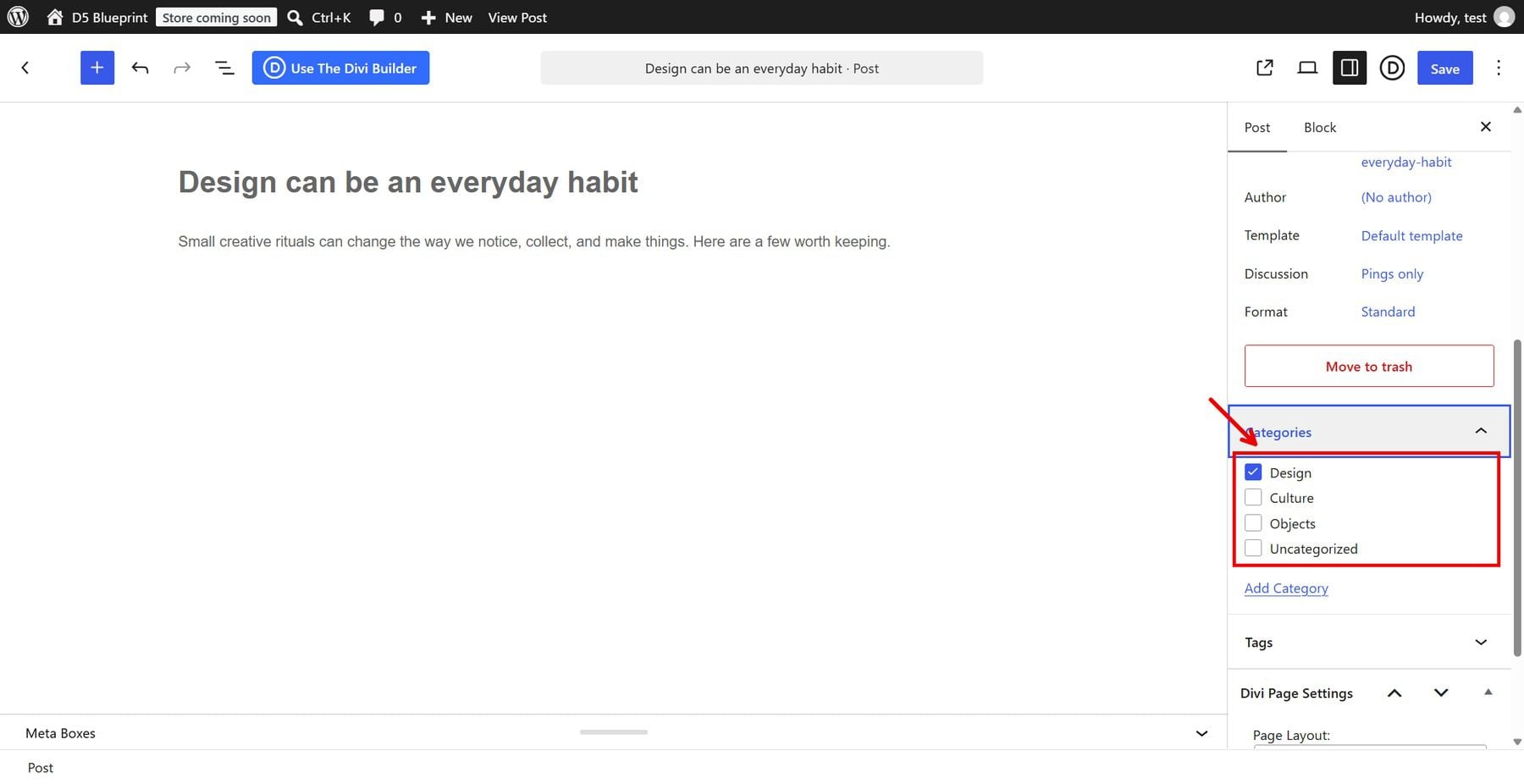
The Recipes and Journal layouts use WordPress Posts with categories and tags. Coastal Homes and Portfolio use Divi Projects with project categories and tags. Assign those terms to your content so the filter choices have matching results. These four layouts use standard content fields, including publication dates on the cards, and require no custom fields or additional post types.
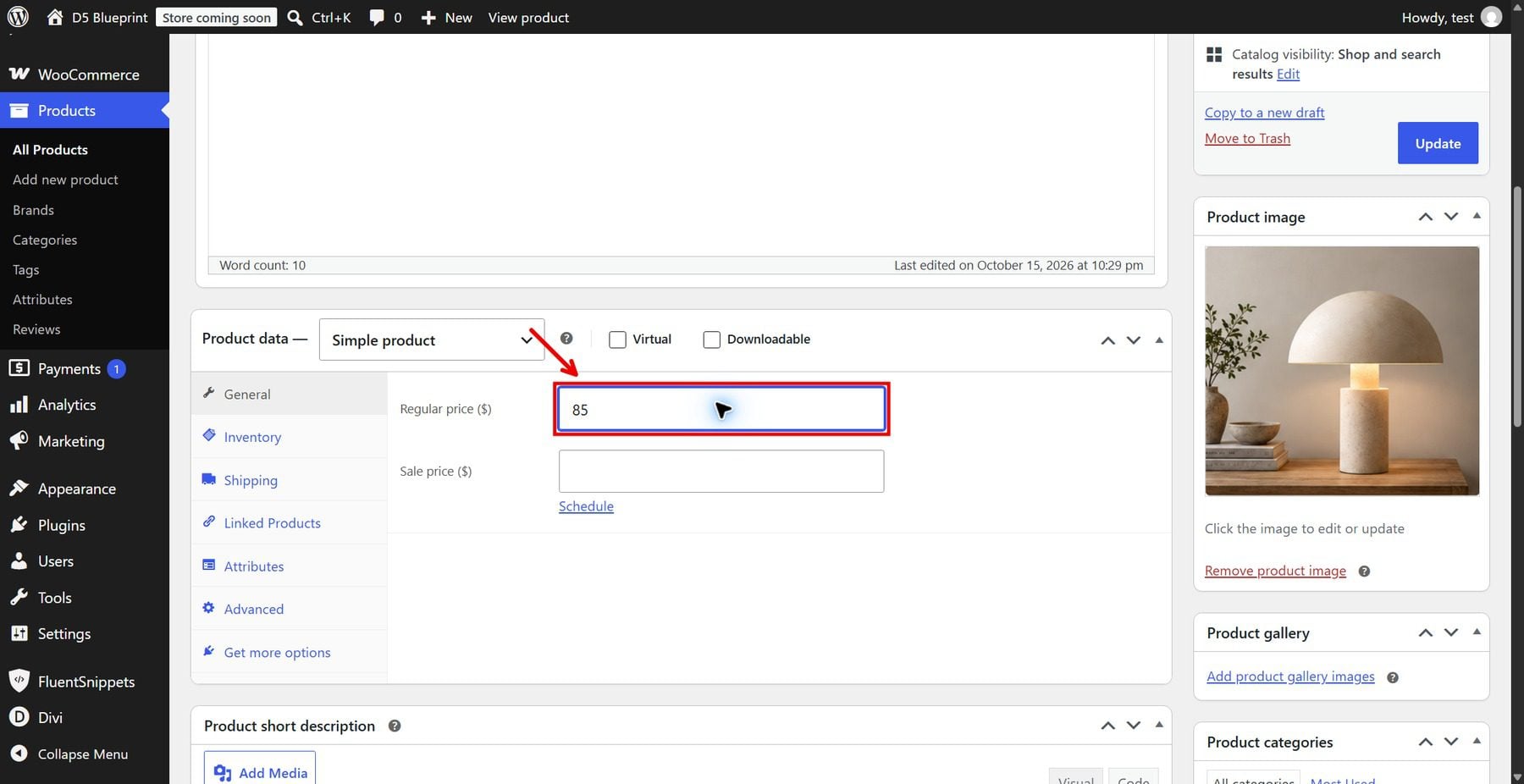
For the Shop layout, add WooCommerce products with prices, product categories, and stock settings. Its rating filter uses product review ratings.
2. Import The Section
Go to Divi > Divi Library in your WordPress dashboard and open Import & Export. On the Import tab, choose an individual sidebar JSON or the combined All file, then import the layouts. Each individual file imports one section. The All file imports five.
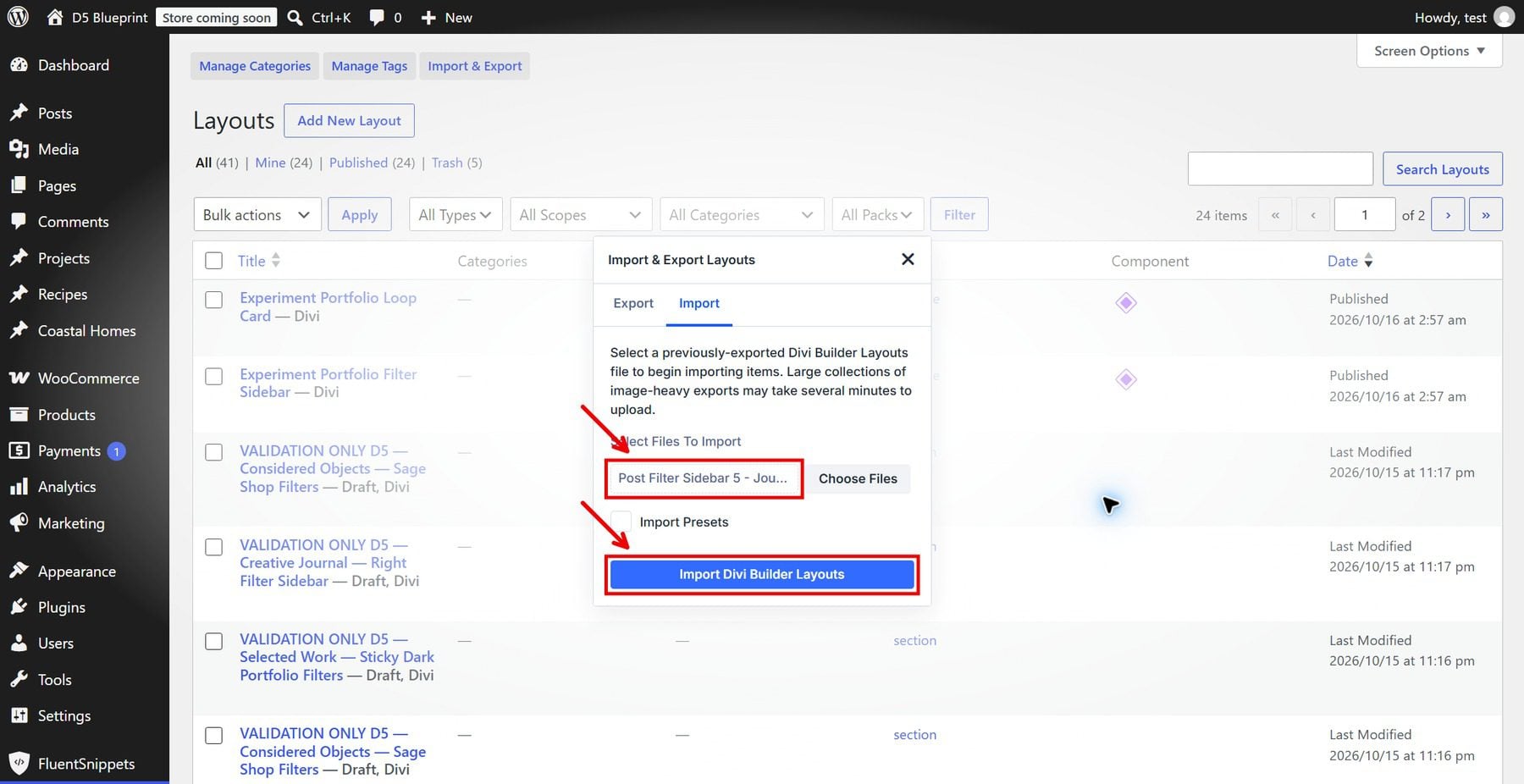
Open your page in the Visual Builder and add a section from the Library. Select the imported design to insert its filter sidebar and matching loop together.
The Blank Page template gives you the section-only presentation used in the previews. You can also place the section within a page that uses your site’s existing header and footer.
3. Connect The Loop And Filter
Confirm the loop’s content source: Posts for Recipes and Journal, Projects for Coastal Homes and Portfolio, or Products for Shop. Then open the Post Filter Module and confirm its Target Loop. Category and tag controls populate from the corresponding taxonomies on your site; their choices reflect your own content. Keep the loop free of specific post or term restrictions unless you intentionally select records from your site.
4. Test The Frontend
Apply one filter and check the matching results. Try a search, change the sort order, and press Reset. Repeat those actions on a phone and tablet, checking that the visible form still controls the intended loop.
Check the same behavior at smaller widths. The next clip shows the tablet view on the left and the phone view on the right.
Make The Filter Design Your Own
Start with the controls your visitors need. Keep useful options visible, use dropdowns for longer lists, and give Apply and Reset enough contrast to find quickly. You can change field backgrounds, borders, typography, spacing, and selected checkbox or radio styling through native Divi settings.
Check sticky behavior against your own header height and sidebar length. The first and third designs use desktop sticky settings; their smaller-screen layouts return to normal flow. Keep native dropdown menus in mind, too: their open-menu selection highlight follows browser and operating-system behavior.
A well-designed filter sidebar helps visitors narrow a collection to the posts, projects, or products that interest them. With these five free designs, you can start with styled controls and a matching loop layout, then adjust the colors, typography, and spacing to suit your site.
Download the free sidebar pack, import your favorite section, and connect it to your own content. Once everything is connected, test the filters across screen sizes and keep the options that make browsing easier for your visitors. Ready to build your next layout? Explore Divi 5 and use its Loop Builder and Post Filter modules to create content collections you can design and customize in the Visual Builder.